🗣️ Voice Command
How to use
Within the specifications of each command, you will find a designated text field labeled "Voice Command". By inputting a voice command in this field, the corresponding action will be triggered upon utterance.
At present, the voice command operates upon request. This implies that you must either click on the speaker icon located in the toolbar or the menu bar to initiate voice recording. To stop the recording and start the recognition process, either press the assigned keyboard shortcut or click the button once more.

What's cool about this feature is that you can totally hide the dock window, and use your voice to trigger commands. You can convert some of the commands to be voice-only by toggling its visibility in the command configuration hiding its button from the dock.
Similarity Score
The similarity score, a value ranging from 0% to 100%, signifies the resemblance between two sets of text. Given that voice commands tend to be brief, the transcription model lacks the necessary context to pinpoint the correct word amid a multitude of others that sound similar. Thus, we don't rely solely on precise matches, but offer the ability to establish a similarity threshold.
- A 100% score indicates that the command will only be activated if the transcription matches perfectly with the pre-set voice command.
- A score of 70% means that if the transcription bears a 75% likeness to the original voice command, it will initiate the command.
- For instance, saying "doggle sidebar" would activate "toggle sidebar".
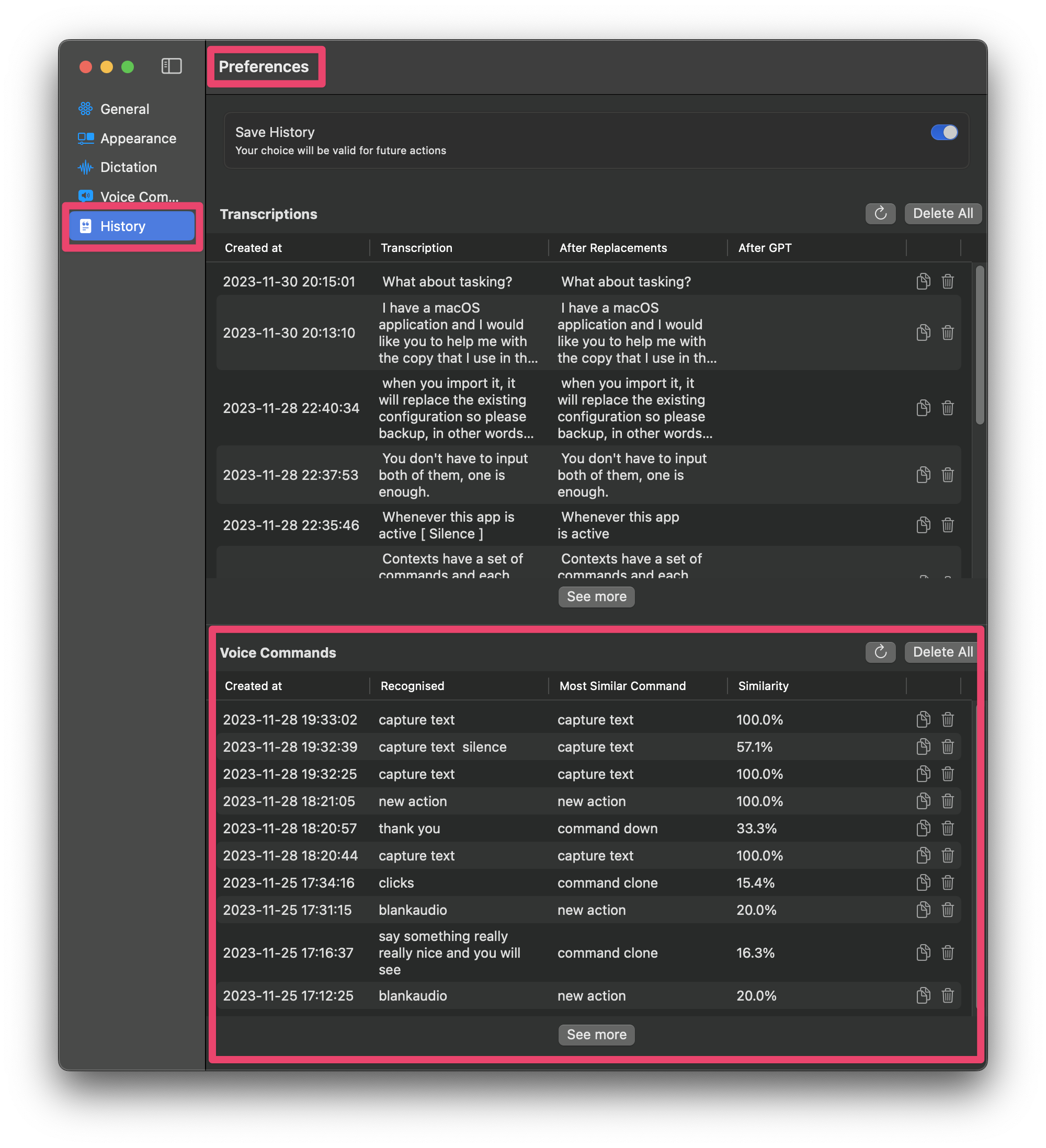
History
The history feature allows you to view the last voice commands that were recognized. This is useful for debugging purposes, as you can see what the transcription model interpreted your voice command to be. It also allows you to see the similarity score, which is useful for determining the optimal threshold for your voice commands.